Play Google Tic-Tac-Toe free. Choose Easy, Medium, or Impossible AI, or challenge a friend. Google Tic-Tac-Toe takes a game people have been scratching into stone, sand, and notebook margins for thousands of years and drops a genuinely difficult AI opponent right into it. Play a relaxed round on Easy, or step up to Impossible mode and try to do the one thing a perfect opponent will never let you do: actually win. No downloads, no account required to start. Works in Chrome, Firefox, Edge, and on mobile.
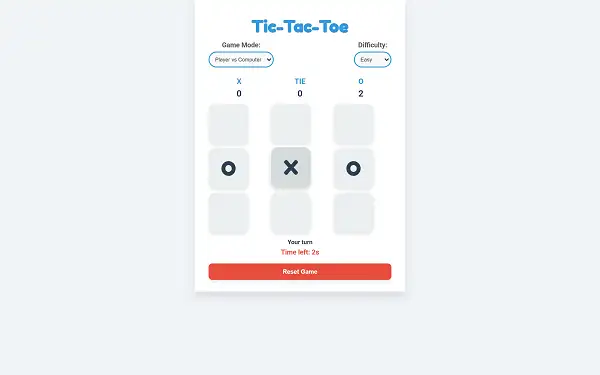
Google Tic-Tac-Toe gameplay screenshot showing a game in progress
What Is Google Tic-Tac-Toe?
Google Tic-Tac-Toe is a browser-based version of the classic three-in-a-row game, built in the style of the playable Tic-Tac-Toe that Google added directly into Search results back in 2016. You can play it right here on this page – no need to search anywhere else, no app, nothing to install.
Tic-tac-toe itself is one of the oldest games still commonly played today, with roots stretching back thousands of years to simple grid-and-marker games played in ancient civilizations. What this version adds to that ancient, simple format is a genuinely well-built AI opponent – one that, at its hardest setting, plays mathematically perfect Tic-Tac-Toe, meaning the best you can ever achieve against it is a draw.
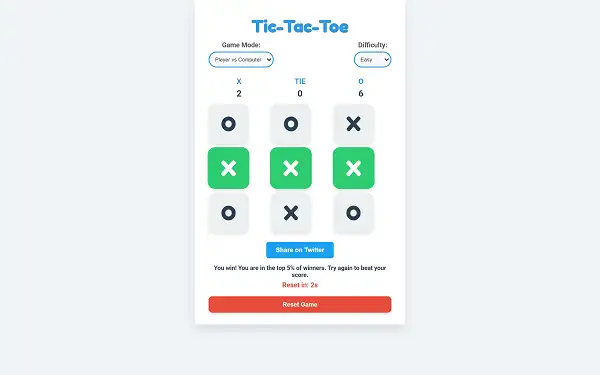
A completed three-in-a-row win in Google Tic-Tac-Toe
How to Play Google Tic-Tac-Toe
- Choose your symbol. Pick whether you want to play as X or O before the game begins.
- Select your difficulty. Choose Easy, Medium, or Impossible if you’re playing against the computer, or switch to Play Against a Friend for local two-player matches.
- Take turns placing your mark. Click or tap an empty square on the 3×3 grid to place your symbol there.
- Watch the computer respond immediately. After your move, the AI (or your friend, in two-player mode) takes their turn right away.
- Get three in a row to win. Line up three of your symbols horizontally, vertically, or diagonally to win the round.
- Restart whenever you’re ready. Click Restart Game to immediately begin a new round, whether you won, lost, or drew.
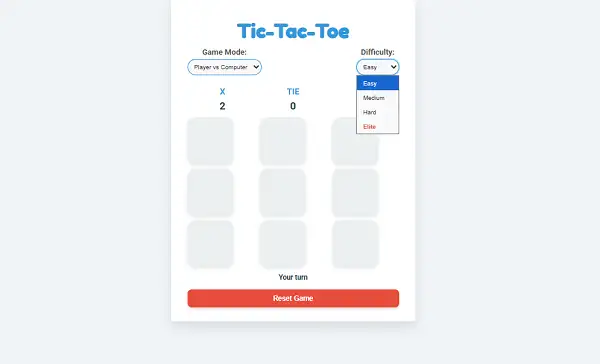
Difficulty selection in Google Tic-Tac-Toe
Controls
| Action |
Input |
| Place Your Mark |
Click or tap a grid square |
| Restart the Game |
Click “Restart Game” |
The controls are as simple as the game itself – one click or tap places your mark, and there’s nothing else to learn. On mobile and tablets, tapping a square works exactly the same way as clicking on desktop.
Difficulty Levels
- Easy – The AI plays casually and makes mistakes, making this a good mode for younger players or anyone just looking for a relaxed, low-pressure round.
- Medium – The AI plays more competently, blocking obvious threats and capitalizing on clear opportunities, without playing flawlessly.
- Impossible – The AI plays mathematically optimal Tic-Tac-Toe. With correct, perfect play, the game is a draw every time – there’s no strategy that beats a perfect opponent at this level, only strategies that avoid losing to one.
- Play Against a Friend – Skip the AI entirely and pass the device back and forth for a local two-player match.
Tips and Tricks
- Take the center square when it’s available. The center is involved in more possible winning lines than any other square, making it generally the strongest opening move.
- If the center is taken, prioritize a corner. Corners are involved in more winning lines than edge squares, giving you more strategic flexibility than an edge placement would.
- Always check for an immediate win before doing anything else. If you have two in a row already, take the third square immediately rather than pursuing a different plan.
- Block your opponent’s two-in-a-row before it’s too late. Scanning the board for your opponent’s threats before making your own move prevents easily avoidable losses.
- Watch for forks. A fork is a move that creates two different winning threats at once, which your opponent can’t block both of simultaneously – learning to spot and create forks is the real skill ceiling in Tic-Tac-Toe.
- Accept the draw on Impossible mode as a real achievement. Since the AI plays perfectly at this difficulty, consistently forcing a draw – rather than losing – is genuinely the best outcome achievable, not a sign you’re playing poorly.
- Use Easy or Medium mode to practice fork strategies. Since the AI is more forgiving at lower difficulties, it’s a lower-pressure way to practice setting up forks before testing them against Impossible mode.
Frequently Asked Questions
What is Google Tic-Tac-Toe?
Google Tic-Tac-Toe is Google’s own playable version of the classic three-in-a-row game, added directly to Search results in 2016, letting you play against an AI opponent or a friend without leaving the search results page.
What are the controls?
Click or tap an empty square on the grid to place your mark. Click “Restart Game” to begin a new round at any time.
What difficulty levels are available?
Easy, Medium, and Impossible against the computer, plus a Play Against a Friend option for local two-player matches.
Can you actually beat Impossible mode?
No, not with perfect play from the AI. At Impossible difficulty, the computer plays mathematically optimal Tic-Tac-Toe, meaning the best achievable result against it is a draw, not a win.
How old is Tic-Tac-Toe?
Tic-Tac-Toe is one of the oldest games still commonly played today, with roots tracing back thousands of years to simple grid-and-marker games from ancient civilizations.
Can I play with a friend instead of the AI?
Yes. Selecting “Play Against a Friend” switches the game to local two-player mode, letting you and someone next to you take turns on the same device.
What is a “fork” in Tic-Tac-Toe strategy?
A fork is a move that creates two separate winning opportunities at the same time, so your opponent can only block one of them, guaranteeing you the win on your next turn.
Is Google Tic-Tac-Toe free?
Yes, completely free with no downloads, sign-ups, or purchases required.
Which browser works best for Google Tic-Tac-Toe?
It runs well on Chrome, Firefox, Safari, and Edge.
Can I play Google Tic-Tac-Toe on a phone or Chromebook?
Yes. It works in any modern browser, including on Chromebooks, and uses simple tap controls on mobile devices.
Why isn’t Google Tic-Tac-Toe loading?
Check your internet connection, make sure this site isn’t blocked on your network, and try disabling any ad blockers – these are the most common causes of loading issues.